The beta is open. You’re three steps away.
Avanlio is in testing on iPhone through TestFlight, Apple’s free app for pre-release versions. Here’s how to get in, what to try — on Apple Watch too — and how to tell us what isn’t working.
- Free, no card
- iPhone with iOS 18 or later
- You decide every change
Open the link on your iPhone. Want it by email, with these steps? Sign up with the form: once you confirm, it all comes to your inbox.
Three steps, all on your iPhone.
If you have a paired Apple Watch, the Watch app installs by itself along with the iPhone app.
Install TestFlight
It’s Apple’s free app for trying apps before they’re released. Get it from the App Store.
Open the beta link
On your iPhone, tap “Open the beta in TestFlight”, then “Install”. If TestFlight asks you to accept first, tap “Accept”, then “Install”.
Open Avanlio and sign in
With Apple, Google or an email link: no password.
Want to look around first? Open the app with sample data, without signing in.
- iPhoneiOS 18 or later. iPad works too.
- Apple Watch, if you have onewatchOS 11 or later, for the Watch app and the complication.
- TestFlightFree, from the App Store. No card required.
No app on your Watch? On your iPhone, open the Watch app, scroll to Avanlio and tap “Install”.
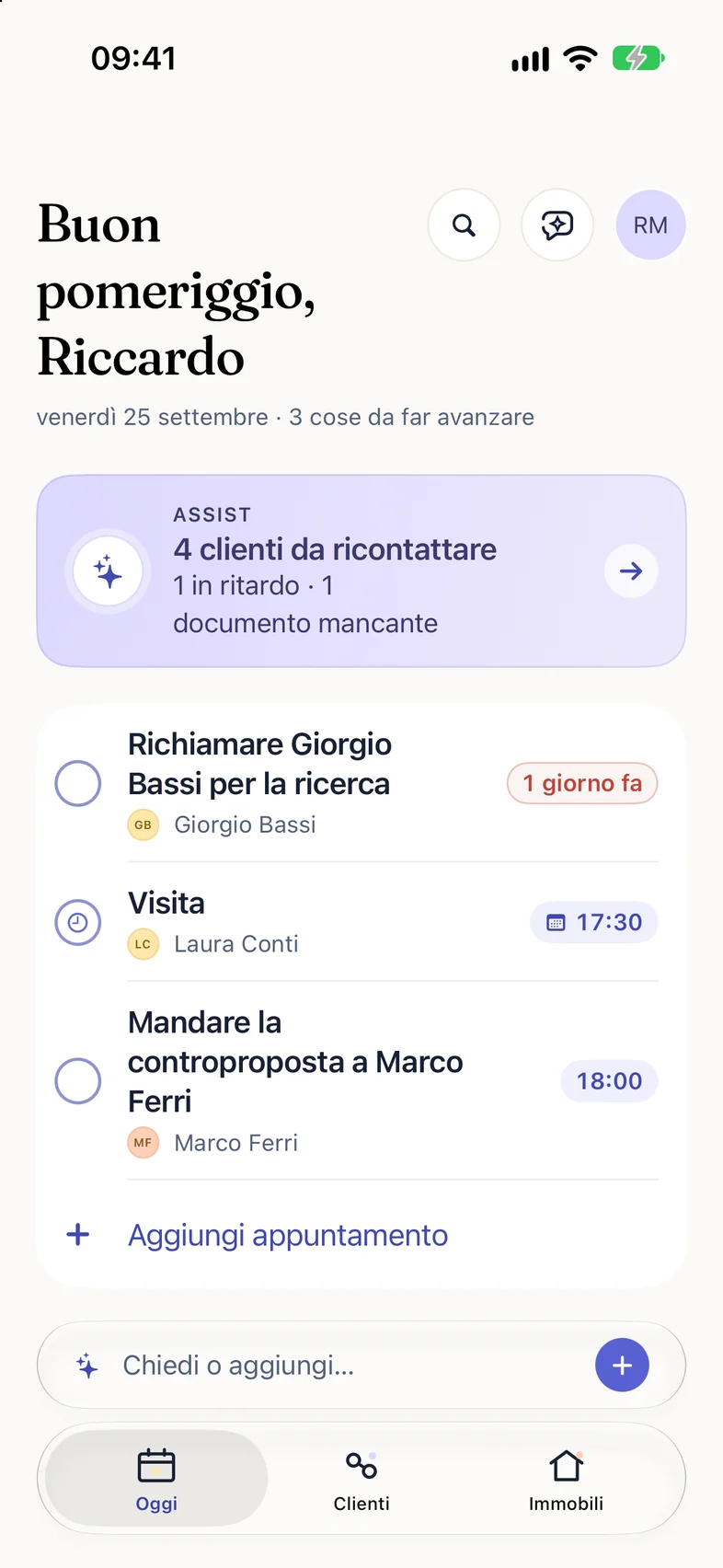
Your working day, in one place.
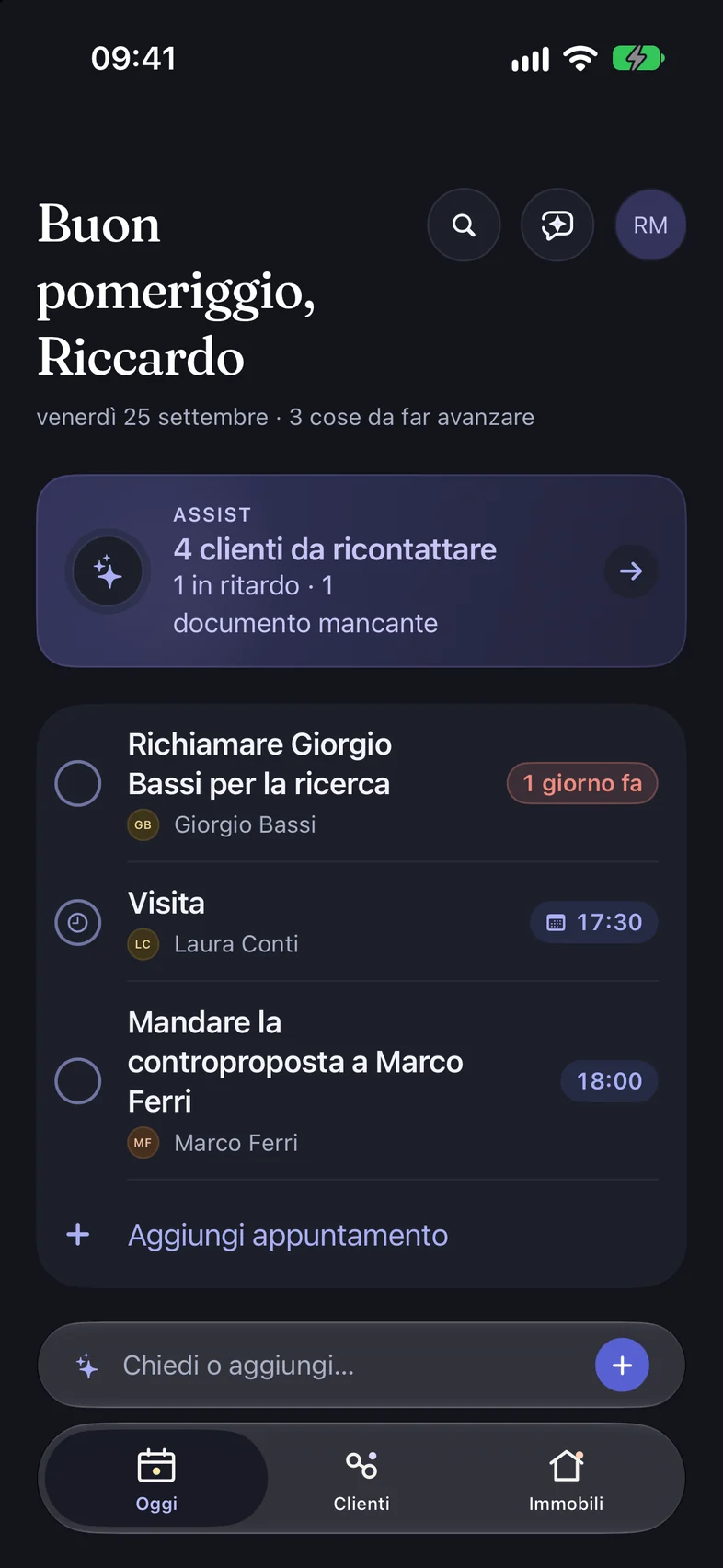
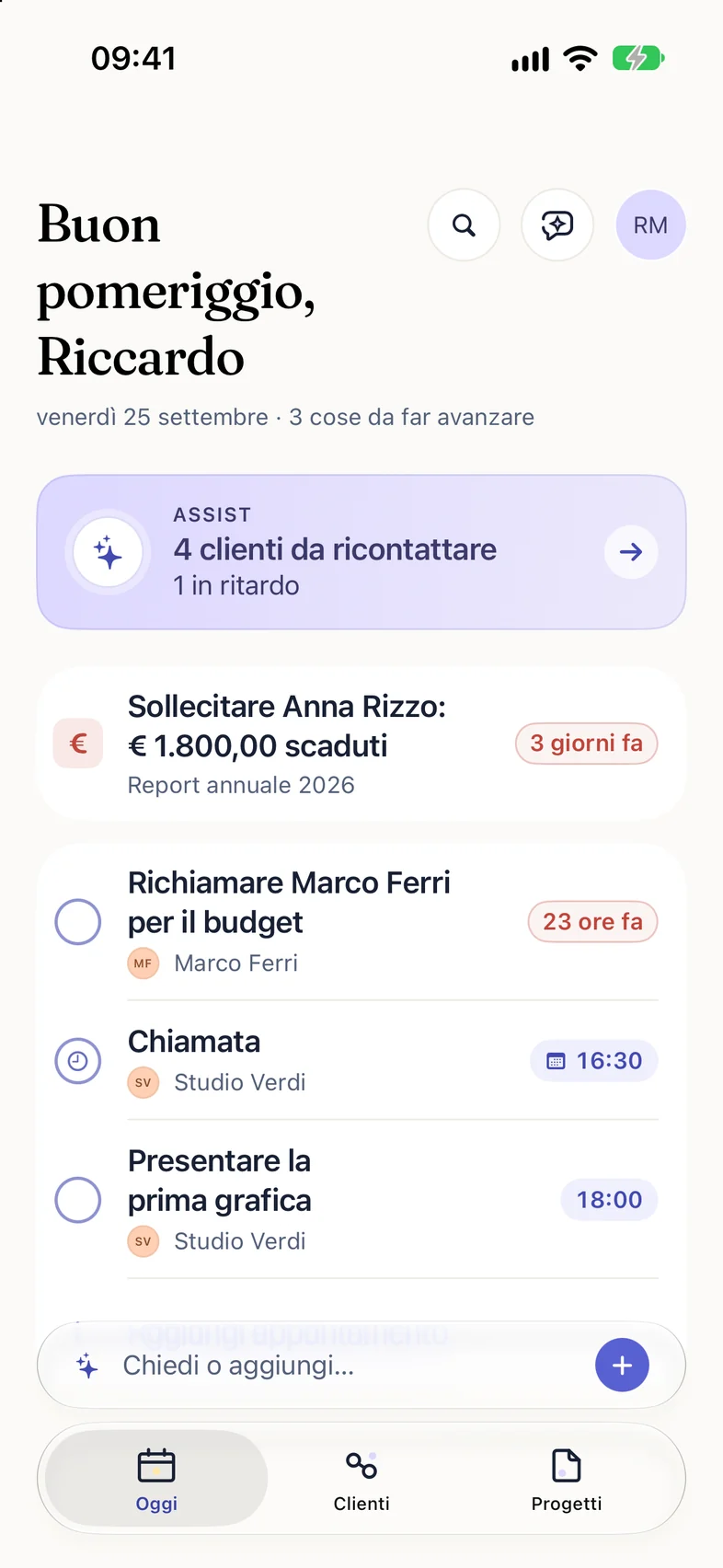
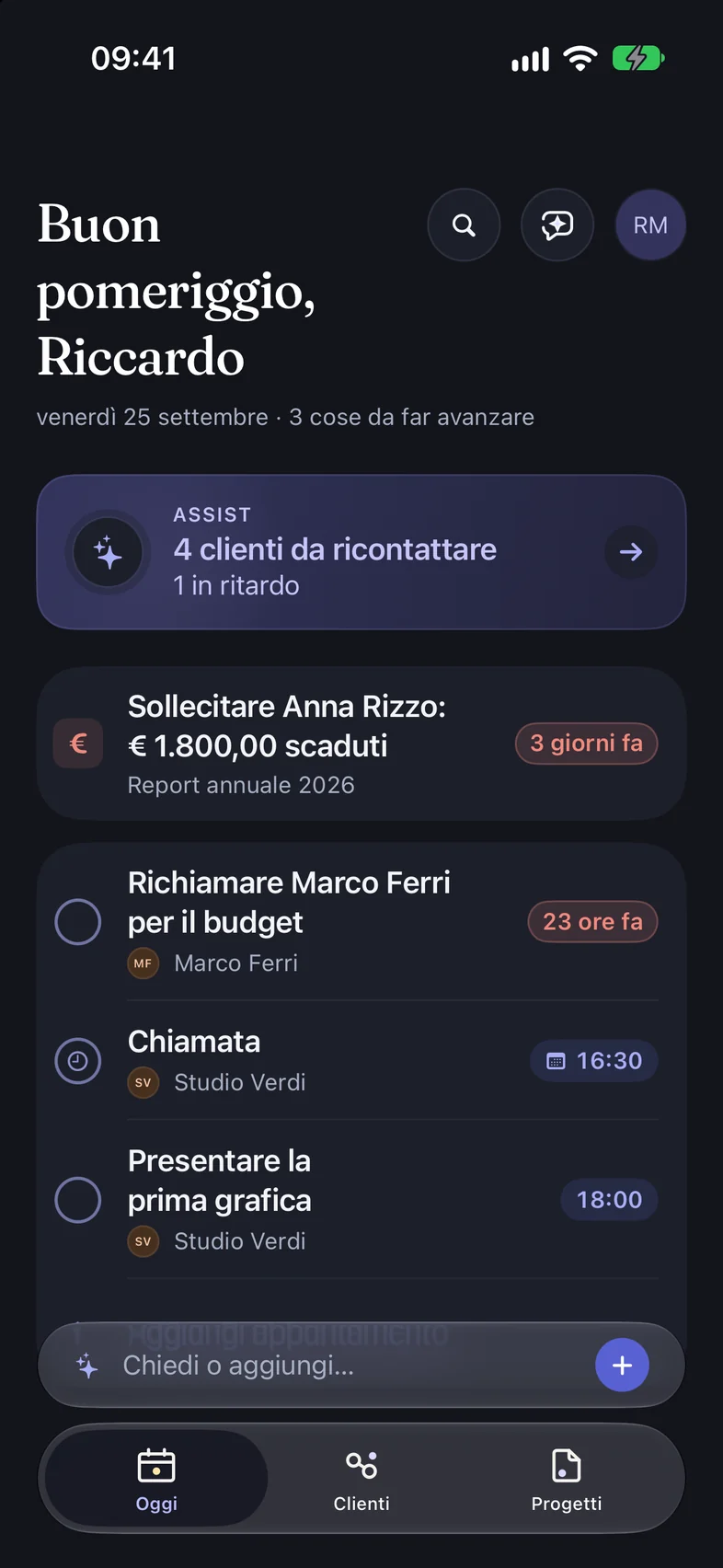
For people who work with clients: real estate agents and freelancers. The screenshots come from the beta, in Italian, with sample data.
- Today
Your day on one screen
Your next appointment, what to move forward, and the days ahead. If you allow it, it also reads your work calendars from the iPhone Calendar.
- Clients and jobs
A record for every client
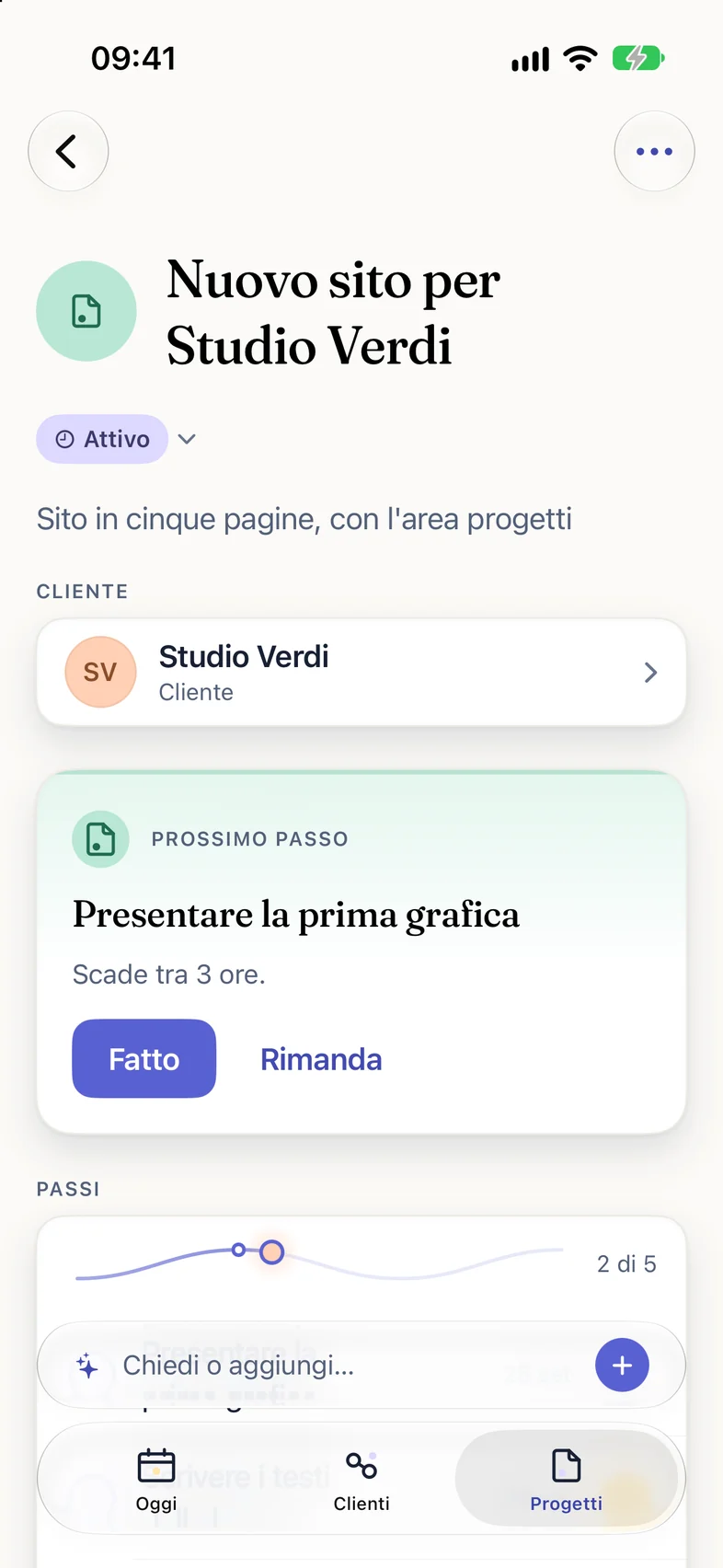
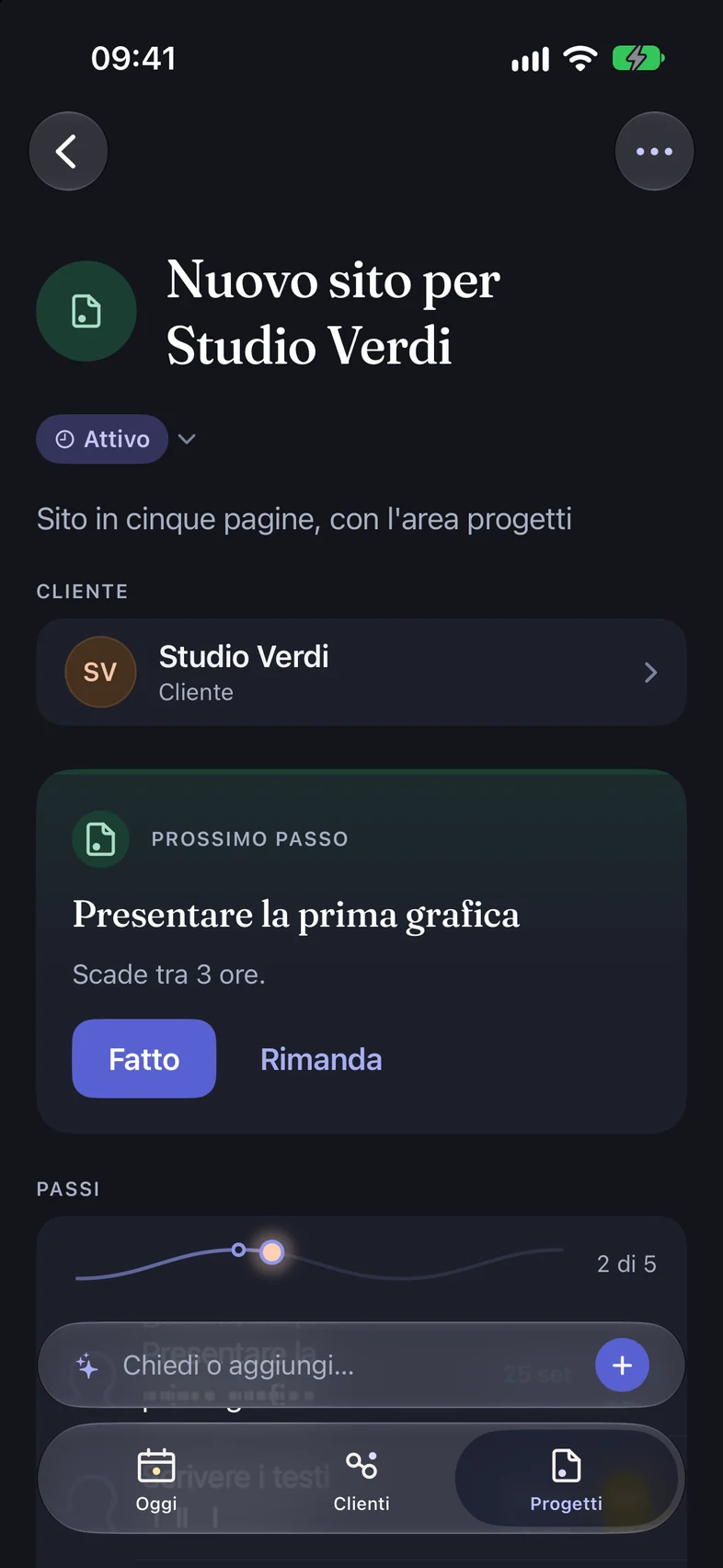
Clients, properties or projects with their history, the next step and its due date, notes, documents, collaborators without an account, and a timeline. Plus a search that finds everything.
- Money
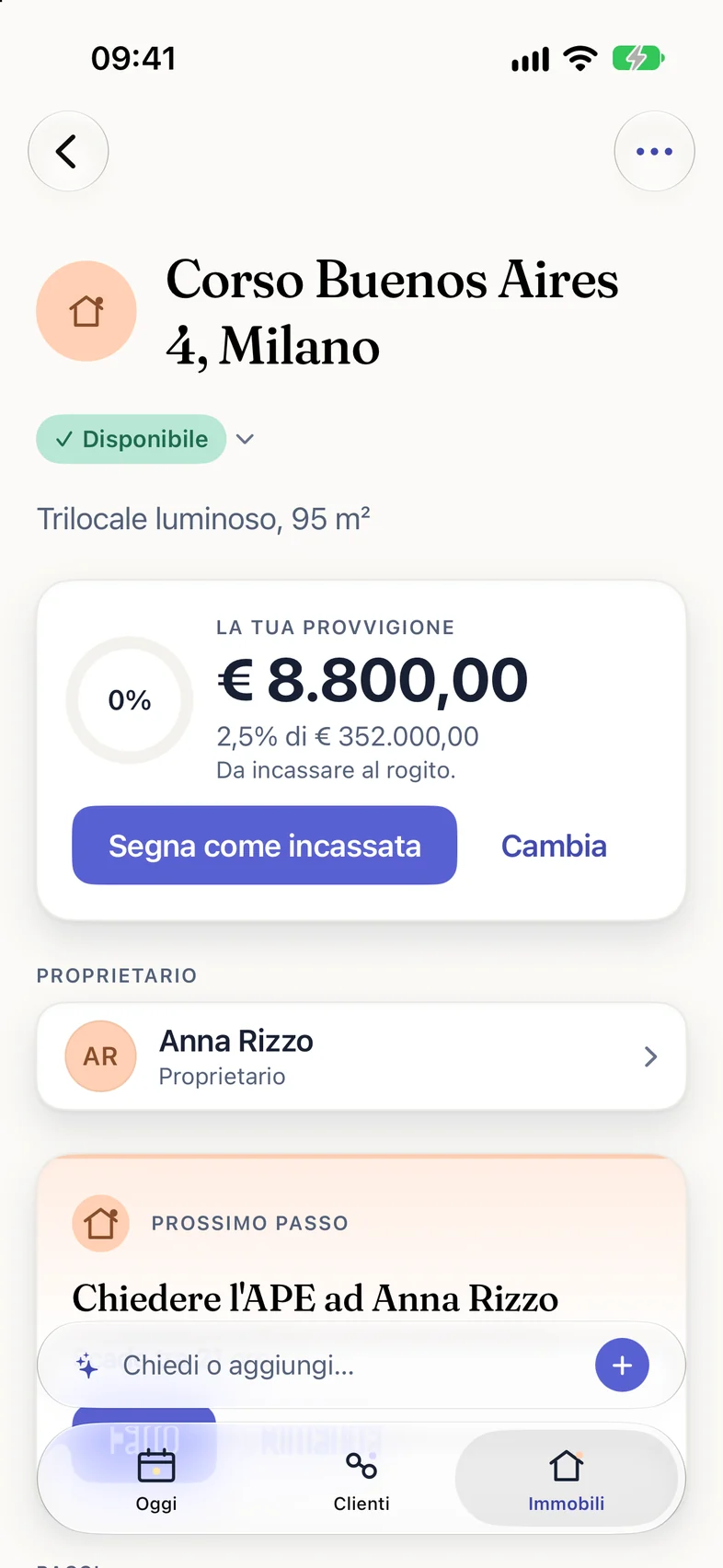
Commissions and payments
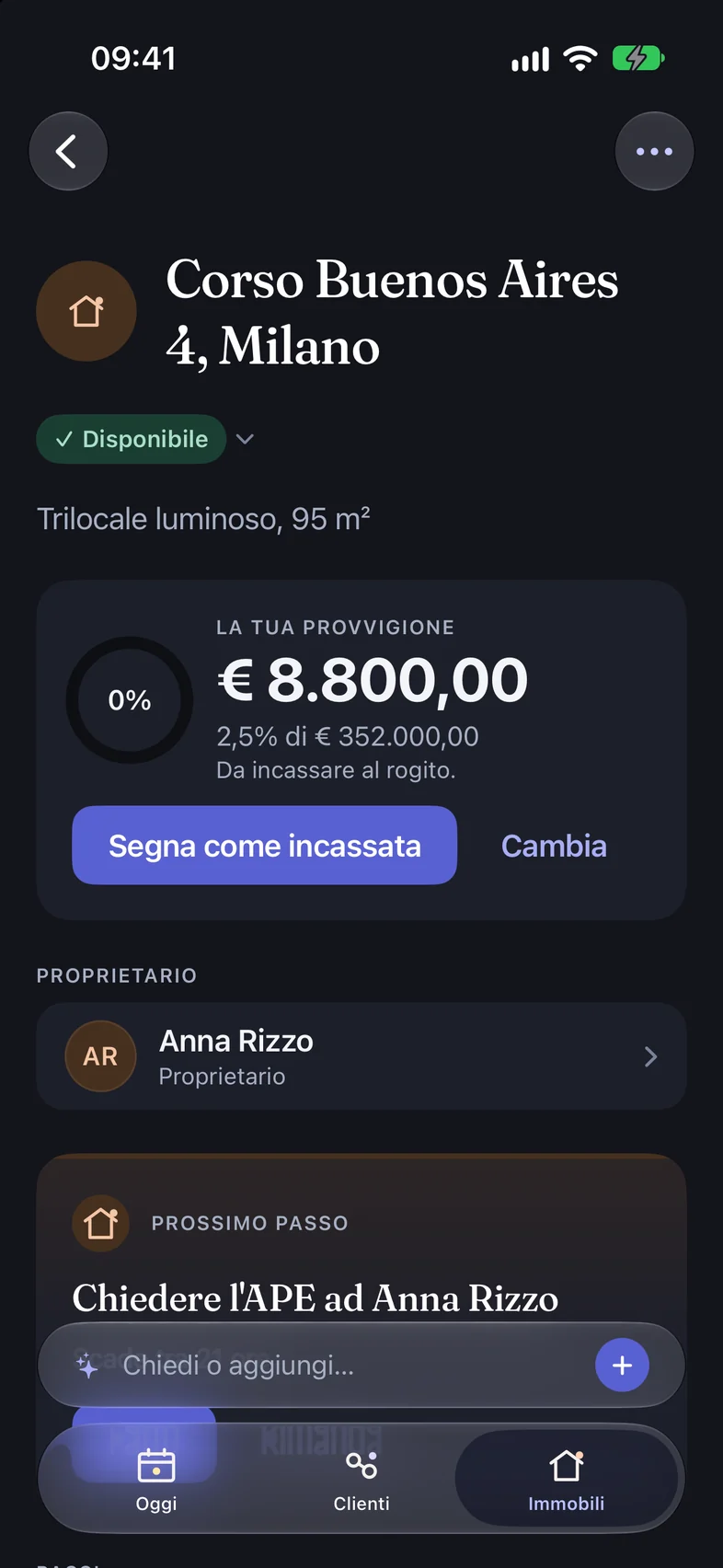
What you’re owed and by when, recurring ones included. “Mark as paid” can be undone with a tap if you got it wrong.
- Assist
It suggests, you confirm
It answers questions about your data, like “Who should I get back to?”, and prepares next steps. It never acts on its own. It runs on OpenAI’s GPT-6 Luna, with 500 answers a month; anything worked out on the phone itself is labelled as such.
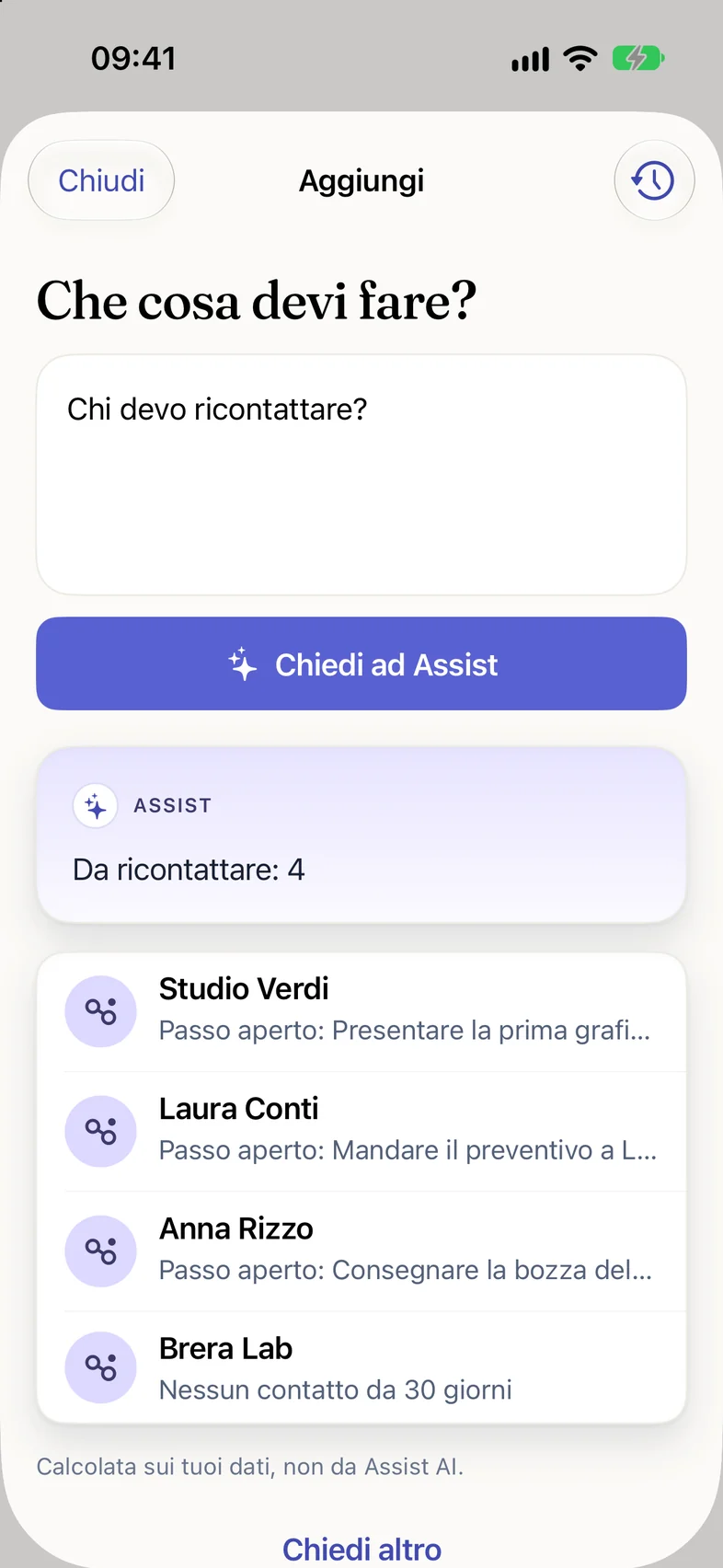
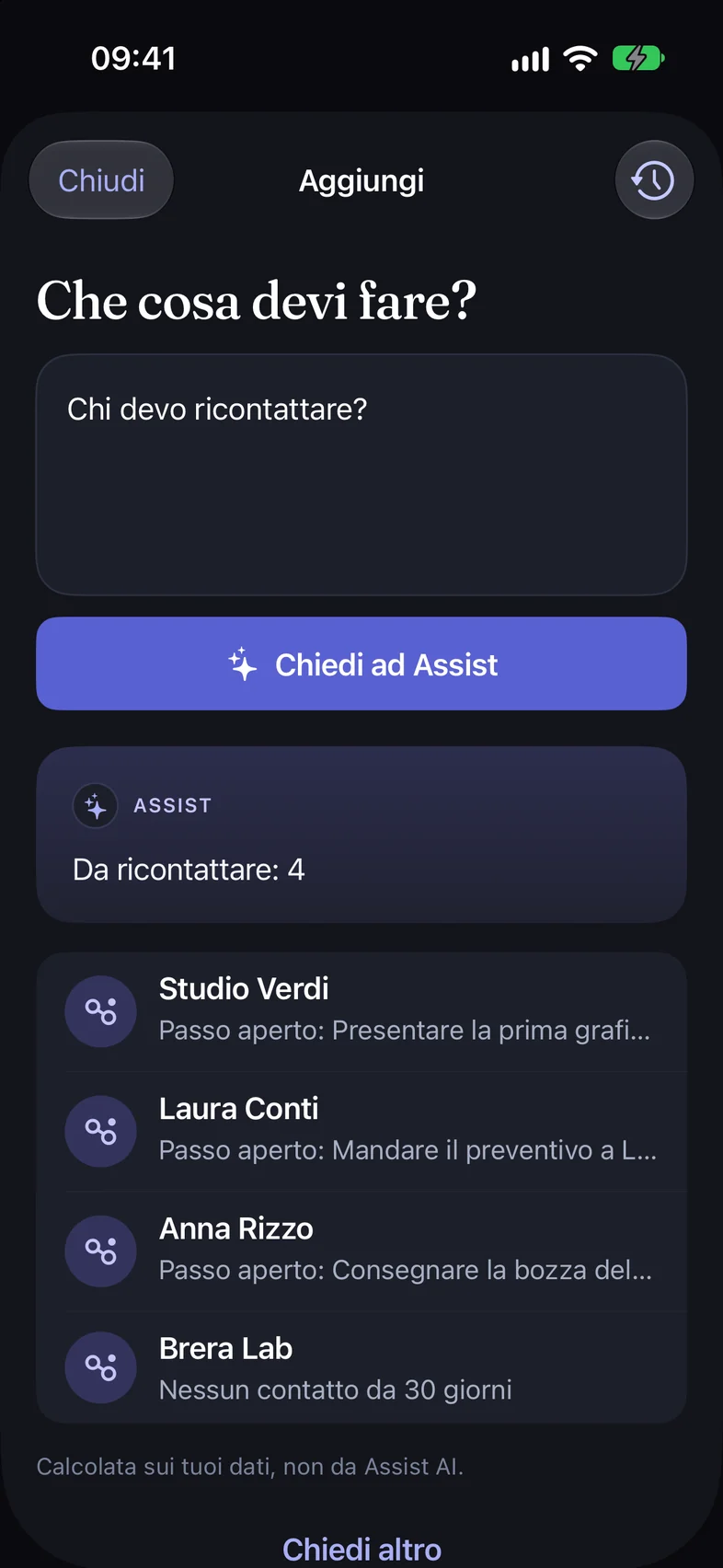
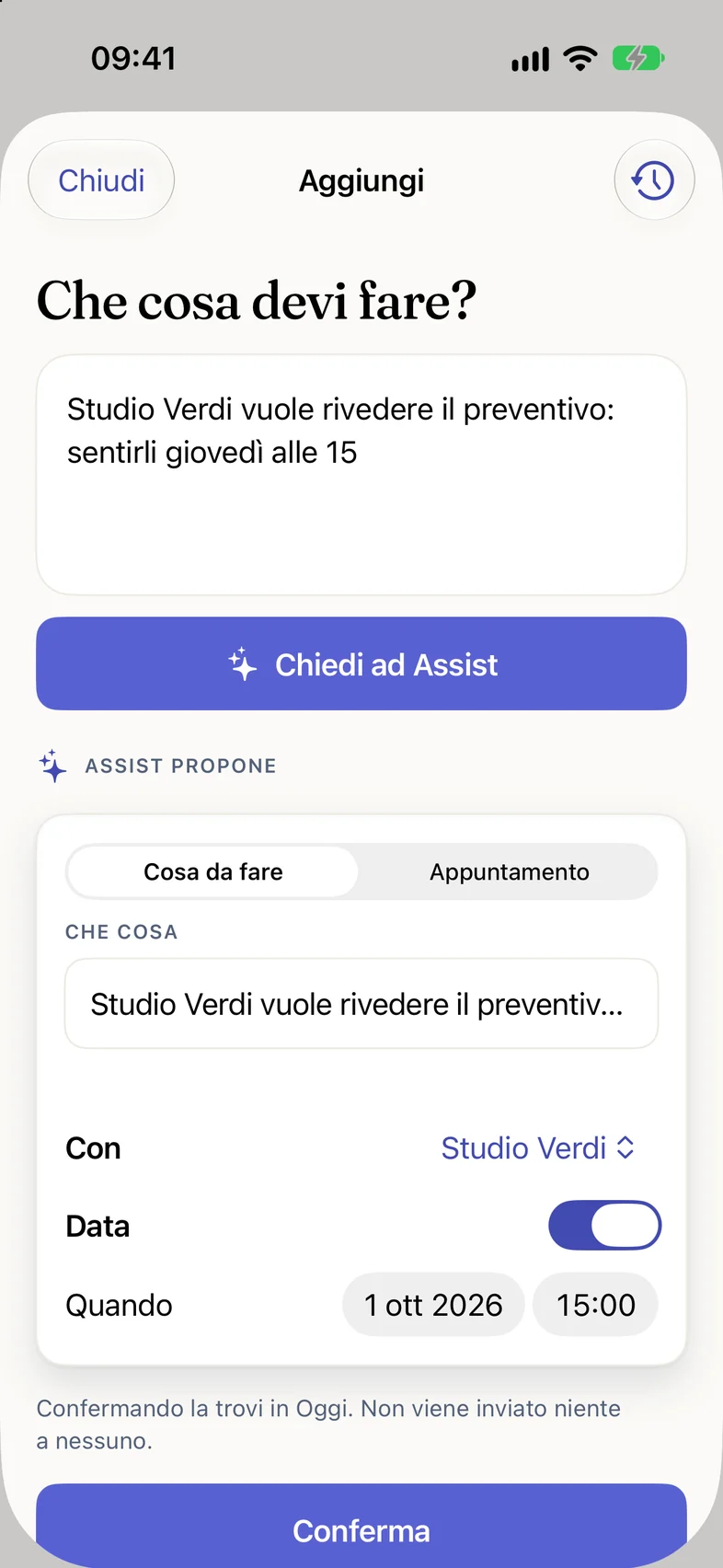
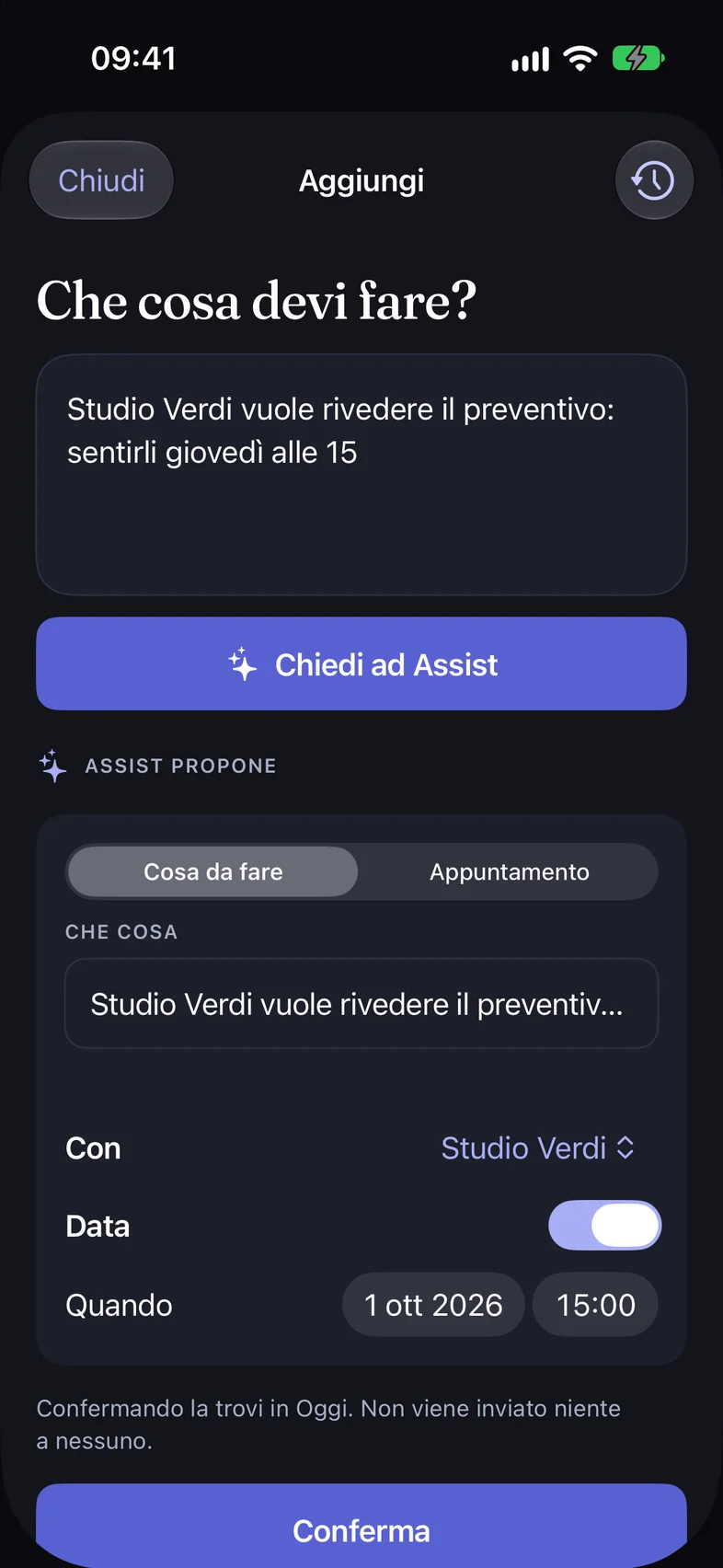
- Quick capture
Type or dictate what happened
After a call or a viewing, a couple of lines is enough: Assist turns them into a task or an appointment, and you check before confirming.
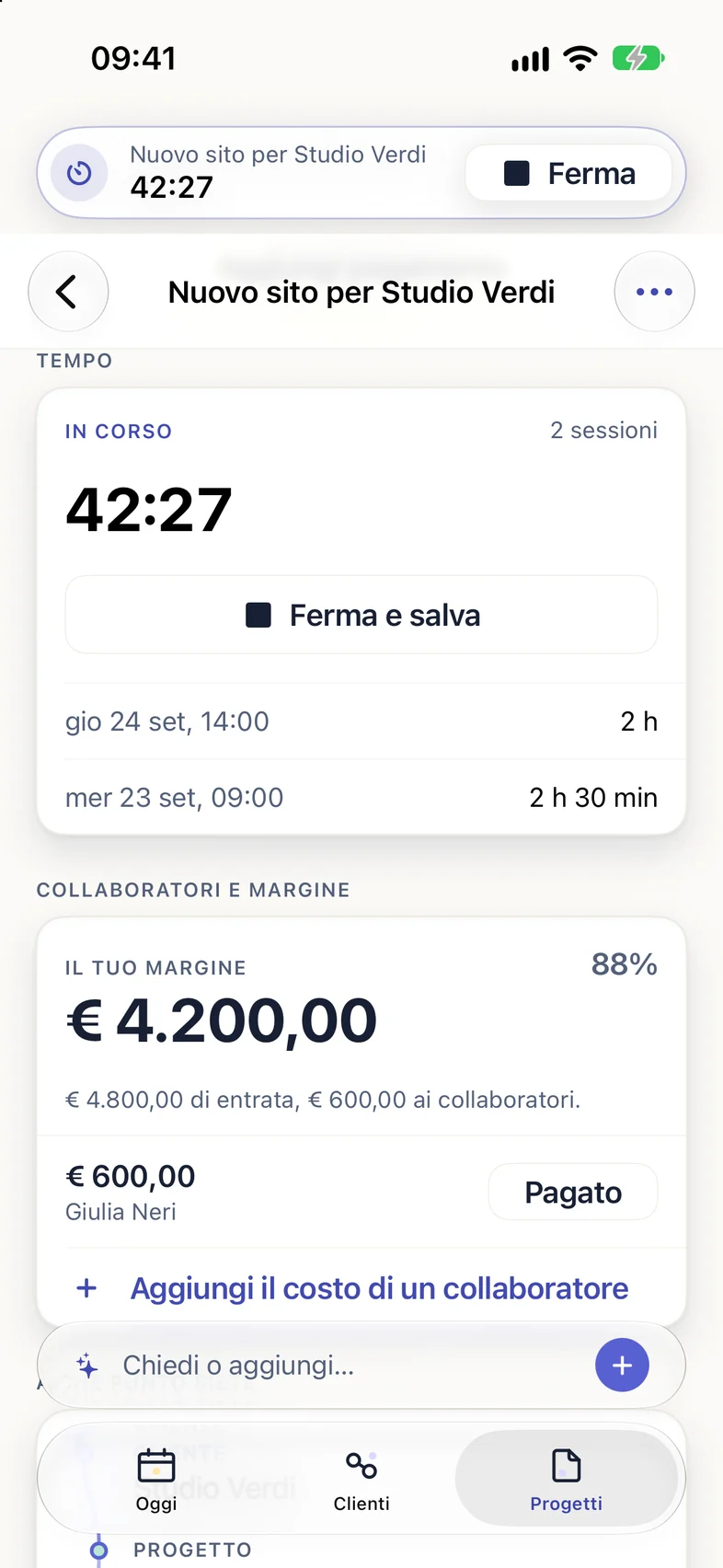
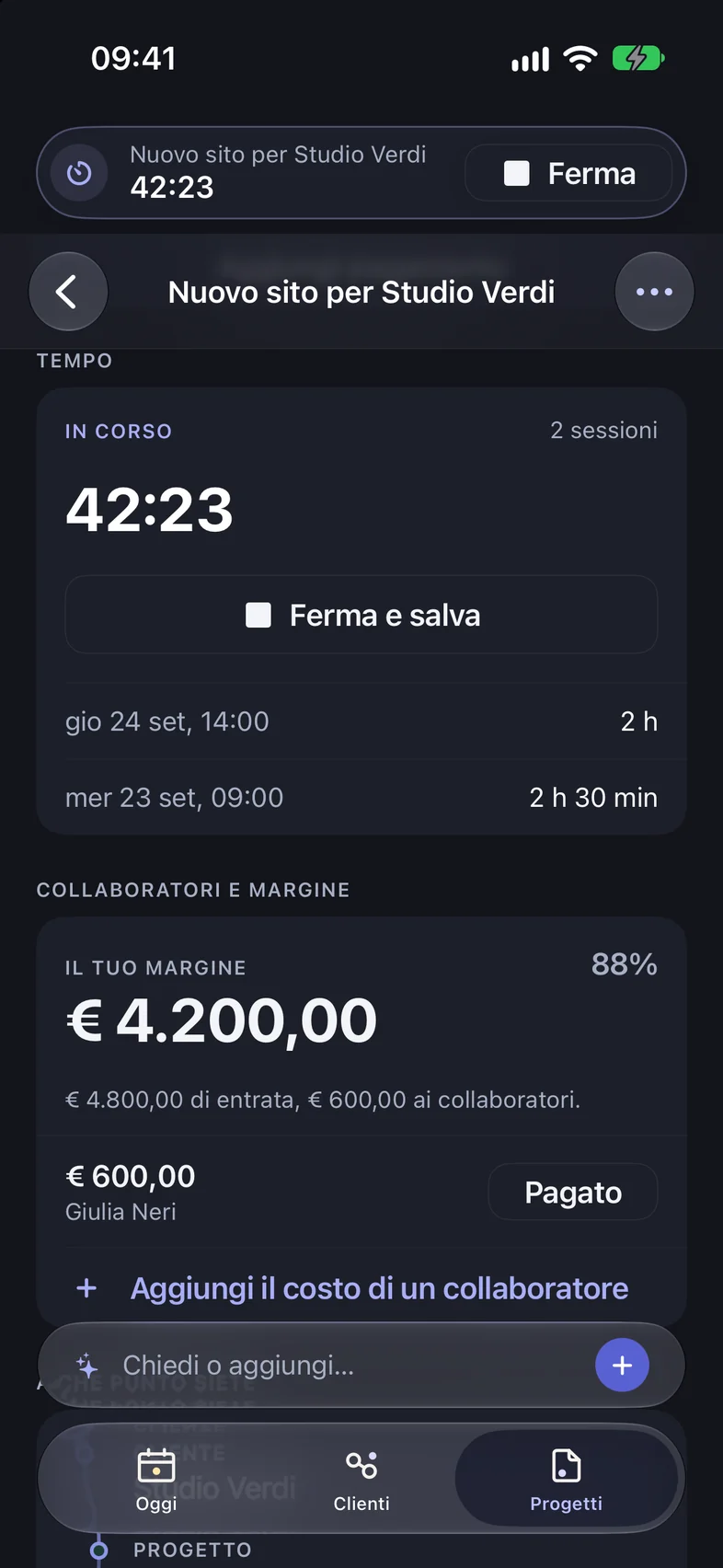
- Timer and Agenda
Hours on a job
Start the timer from a job and find it at the top of the app and in the Dynamic Island. The Agenda lines up appointments and deadlines.
Import from files
A client or a whole folder of projects from Files: Avanlio reads and suggests, you check. It keeps going if you leave the app and keeps the draft if you stop halfway.
Dynamic Island and Live Activity
Confirmations like “Done” and “Paid” come out of the island with “Undo”; an import carries on there while you do something else.
Actionable notifications
“Mark as paid” or “Remind me tomorrow” straight from the notification, without opening the app.
“What’s next” widget
On your Home Screen, your next appointment at a glance.
Siri and Shortcuts
“Who should I get back to” and other commands, by voice too. Quick actions when you hold the icon, and Share to send files or text to Avanlio from other apps.
Works offline
Notes written without a connection go out when it comes back. Nothing gets lost.
Accessibility and languages
English and Italian, light and dark, large text, VoiceOver, Increase Contrast and Reduce Motion. On iPhone and iPad.
Profile and privacy
Your name and 22 artworks for your profile, the Privacy Center and account deletion, all in the app.
Your day on your wrist.
The Apple Watch app shows your next appointment with a countdown, the rest of today and the steps left to close. Tap an item and act from there.
- Call the person you’re meeting with one tap.
- Record the outcome of a viewing as you walk out.
- “Done”, with 8 seconds to undo, or “Snooze until tomorrow”.
- The complication keeps your next appointment on your watch face.
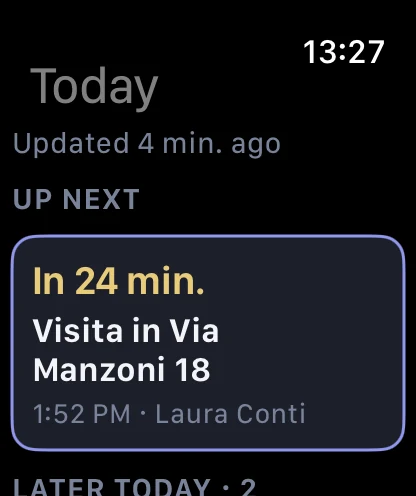
Today 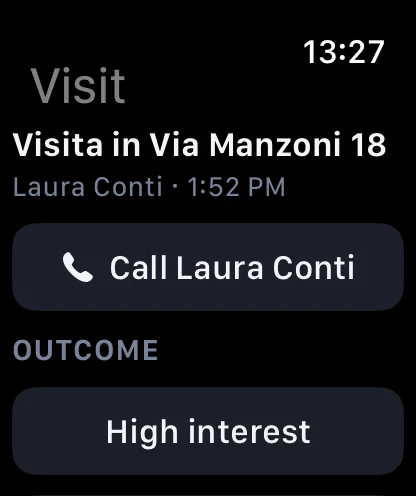
A viewing 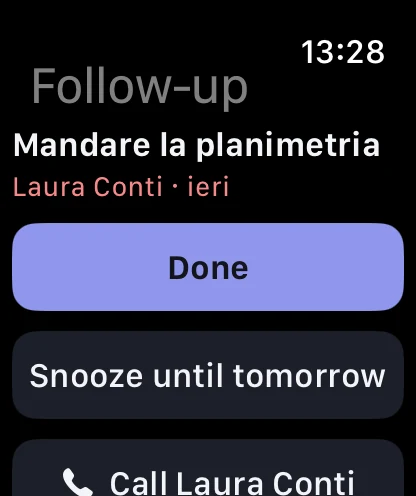
A step
Requires watchOS 11 or later. With a paired Watch the app installs by itself; if you can’t find it, open the Watch app on your iPhone and tap “Install” next to Avanlio. For the complication, touch and hold the watch face, tap “Edit” and choose Avanlio. Screenshots from the Apple Watch simulator, with sample data in Italian.
What changes in 0.1 (34).
Build 34 is on TestFlight: if you have 33, TestFlight offers the update. It brings the widget, the watch complication and the other changes below.
What’s new
- Widget and watch face. The “What’s next” widget for your Home Screen and the complication for your watch face show your next appointment at a glance.
- Assist tells you who. Tap “clients to get back to” on Today: you see who and why, and you can call, write or mark it done from there.
- Imports that keep going. Importing from files is faster, skips images that aren’t documents, asks how far along the job is, keeps its draft and doesn’t stop when you leave the app.
- Tidier screens. Photos fill the avatar, section headings line up with the cards and large text no longer breaks words.
What to try
- Touch and hold the Home Screen, tap “+” and add the Avanlio widget. On your watch, pick the Avanlio complication: you should see your next appointment.
- On Today, tap the “clients to get back to” card: with no extra steps you should see names, the reason and the Call, Write, Done buttons.
- Import a client from a folder of files, leave the app while it reads and come back: it should carry on from where it was. Close the sheet halfway: when you reopen it you’ll find “Resume”.
Tell us what isn’t working.
A bug, a wrong word, a step that doesn’t make sense: every report reaches Riccardo, who reads them all.
From the app
Take a screenshot inside Avanlio and tap “Share Beta Feedback”: add a couple of lines and send.
From TestFlight
Open TestFlight, tap Avanlio, then “Send Beta Feedback”.
By email
Reply to the beta email, or write to hello@avanlio.com.
Try it on your real work.
The more you use it with real clients and real deals, the better the next versions will fit people who work like you.
Open the beta in TestFlight